Open a CAN log or capture a live bus.

Decode it with a DBC, plot signals and work out unknown messages bit by bit, all in a browser tab with nothing to install. Live capture is experimental, in Chrome and Edge on desktop.

Free. No account.

A drawing of FreeCAN Studio in a desktop browser with the built-in demo log: 1,000,000 frames from 11 IDs on two buses, decoded with its DBC.

From raw frames to signals

Open a log to see what is on the bus: every ID with its count, period and bit activity.

Decode with DBC

Load the DBC files that describe your bus and every matching frame is decoded, with the raw bytes beside the values.

  • Intel and Motorola byte order; unsigned, signed and float signals
  • Simple and extended multiplexing
  • Several DBCs at once, each for every bus or for one bus
  • J1939 messages matched by PGN, with multi-packet transfers reassembled
0C9 ENGINE_1 at 52.340 s: CB 1F 67 45 00 00 10 A6
SignalBitsValue
EngineSpeed0|16@1+2,034.75 rpm
ThrottlePos16|8@1+41.2 %
CoolantTemp24|8@1+29 degC
Counter51|4@1+2
Checksum56|8@1+166

Plot signals

Pick signals and plot them in stacked lanes on one time axis. Place A and B cursors to read values and the time between them, and move around a long recording with the full-log minimap.

  • Fast on millions of points: plots are reduced to what the screen can show
  • Drag to zoom into any stretch of time

Reverse engineer unknown messages

For IDs no DBC describes, see what changes before you guess what it means.

  • Byte Values: a sparkline for every byte of every message, next to signals you already know
  • Bit activity: how often each bit changes, from rarely to every frame
  • Drag across bits to define a signal, add it to a DBC and export it
  • Find Signal: describe how a signal behaves over time and get ranked candidates

An example bit activity grid, bits 7 to 0 for bytes 0 to 7. The dashed outline marks a 4-bit counter, selected by dragging across it.

Record a bus live Experimental

Plug a USB CAN adapter into a desktop computer, choose it under Connect live… in the app in Chrome or Edge, and watch the bus as frames arrive. They go from the adapter to your browser tab and are never uploaded.

Plug in an adapter

  • slcan over Web Serial: CANable with slcan firmware, USBtin, Lawicel CANUSB and other slcan adapters
  • candleLight over WebUSB: candleLight, CANable with candleLight firmware and other gs_usb adapters
  • Bitrates from 10 kbit/s to 1 Mbit/s, and CAN FD on adapters that support it

Watch it as it records

  • Overview, Trace and Plot follow the bus, decoded with any DBC set to that bus
  • Trace filters and bit activity update as the capture grows; suggested signals come once you stop
  • Listen only by default, so the adapter doesn’t acknowledge frames; if an adapter can’t confirm it, the app asks before starting
  • Keep every frame, or only the last 1, 5, 10, 30 or 60 minutes, so a capture can run for hours

Save it

Stop, then Save Capture… writes a candump log. Export Log… turns it into ASC, BLF, TRC, MF4 or CSV.

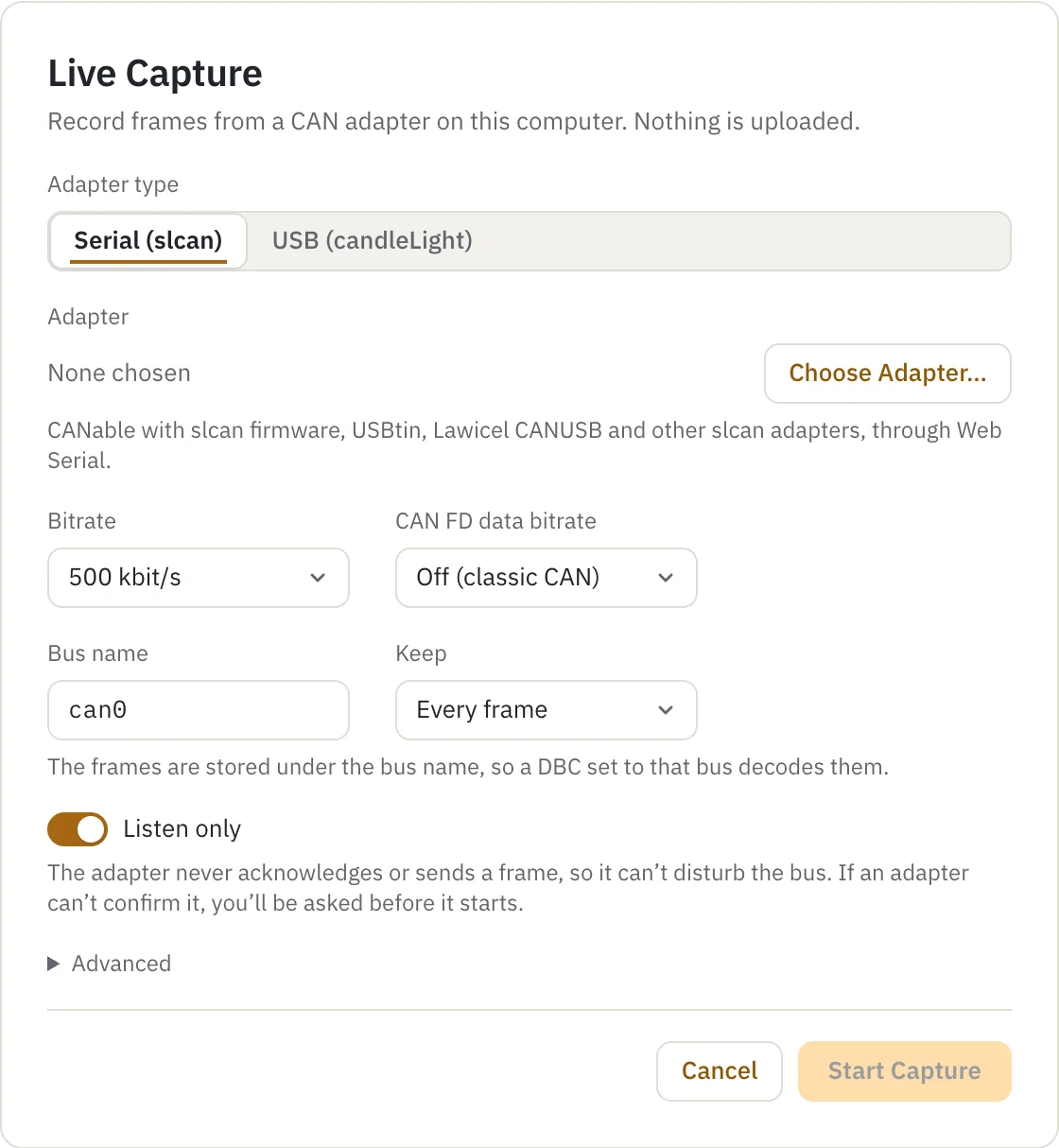
The Live Capture sheet: adapter type Serial (slcan) or USB (candleLight), Choose Adapter…, bitrate, CAN FD data bitrate, bus name, how much to keep, and a Listen only switch.
The Live Capture sheet, opened from Connect live… in the app’s toolbar.

What it needs

  • Chrome or Edge on a desktop computer, on Windows, macOS, Linux or ChromeOS. Firefox and Safari can’t reach serial or USB devices, but still open logs.
  • Receive only. The app never sends a frame, so there is no transmit or replay. One adapter and one bus at a time.
  • Still experimental. Live capture is tested against simulated adapters, not yet with real hardware.
Live capture setup: drivers and access

On Linux, a candleLight adapter has to be unbound from the kernel’s gs_usb driver first, and your user needs access to the USB or serial device. On Windows, it needs the WinUSB driver; one bound to another driver can’t be opened.

Files never leave your computer

Files are processed on your computer and never uploaded.

FreeCAN Studio is a set of static files. Its Rust core is compiled to WebAssembly and runs in a Web Worker inside your browser tab, so logs and DBC files are read and decoded on your machine. There is no server that receives them.

How local processing works

The app domain, app.freecanstudio.com, loads nothing from any third party: no analytics, no trackers, and no fonts or scripts from a CDN. Its Content-Security-Policy tells your browser to refuse anything from another origin, so the browser enforces this, not just this page. This site, freecanstudio.com, counts visits with Cloudflare Web Analytics, which sets no cookies; the app does not.

To keep your work across a reload, the app stores the open log and DBCs in your browser’s own storage. They stay on your computer.

Check it yourself

Your IT team can read the policy from the app’s response headers:

curl -sI https://app.freecanstudio.com/ | grep -i content-security-policy

The policy allows only the app’s own origin ('self'):

default-src 'self'; script-src 'self' 'wasm-unsafe-eval'; worker-src 'self'; style-src 'self' 'unsafe-inline'; img-src 'self' data: blob:; media-src blob:; font-src 'self'; connect-src 'self'; object-src 'none'; base-uri 'self'; form-action 'none'; frame-ancestors 'none'

Or open your browser’s developer tools on the app and watch the Network tab while you work: every request goes to app.freecanstudio.com. This site, freecanstudio.com, is separate from the app.

Supported formats

Open a log, add one or more DBC files, and every matching frame is decoded.

Log files

  • candumpSocketCAN, -l and -L
  • ASCVector text log
  • BLFVector binary log
  • TRCPEAK trace file, versions 1.0 to 2.1
  • MF4ASAM MDF 4 bus logging files with raw CAN frames
  • CSVpython-can, SavvyCAN and other frame exports

Classic CAN and CAN FD, 11-bit and 29-bit IDs, and J1939.

A live capture is saved as a candump log, and can be exported to any of these formats.

Signal database

  • DBCSeveral at once, for every bus or one bus

Runs in current desktop versions of Chrome, Edge, Firefox and Safari. Live capture needs Chrome or Edge.